Resources
Copier Installation and Setup
Install the copier
- Setup your “VPS”
- Go to KOT4X, download and install “MT4”
- Login to your KOT4X account.
- Download copier to “Desktop”
- Start MT4
- Go to File>Open Data Folder
- Open MQL4>Experts
- Drag or Copy “AutoFxPro.com - Trade Receiver Free.ex4”
- Close Data Folder
- Restart MT4
Configure the copier
- Open “Chart” that you don’t trade
- Press “Ctrl N” to open left panel
- Open “Expert Advisors”
- Drag “AutoFxPro.com - Trade Receiver Free.ex4” onto the that you just opened
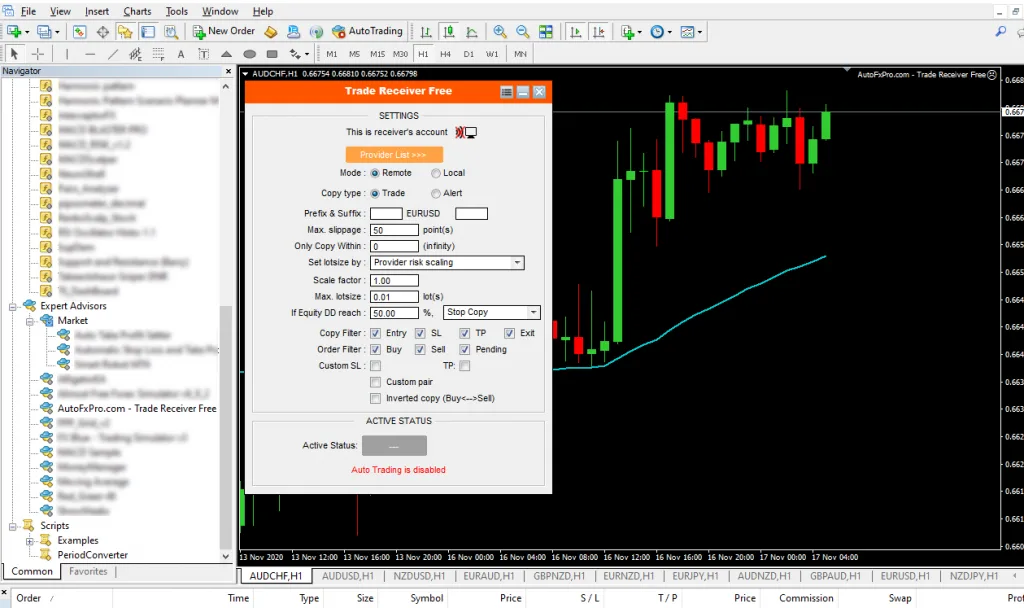
- The Copier will Open
- Click Provider List>>>
- Click “Account Number and type “20324”
- Click “Description” and type TakeActShaun
- Click the “+” to add to list above. Click “Ok”
- See Image below for recommended settings.
Configure MT4
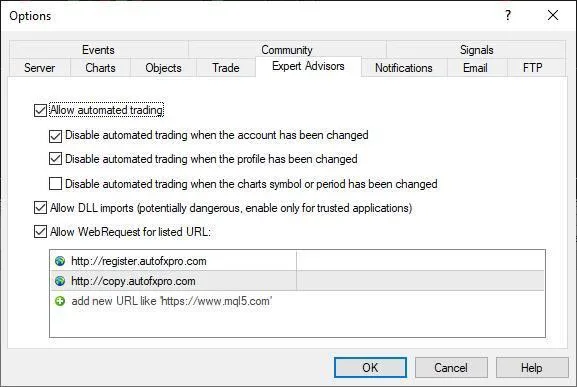
- Press “Ctrl O”
- Click “Expert Advisor” Tab
- Check All Boxes
- Add the following addresses
- Click “add new URL”
- Copy and Paste: http://register.autofxpro.com
- Repeat and add: http://copy.autofxpro.com
- Click “Ok”
Start the copier
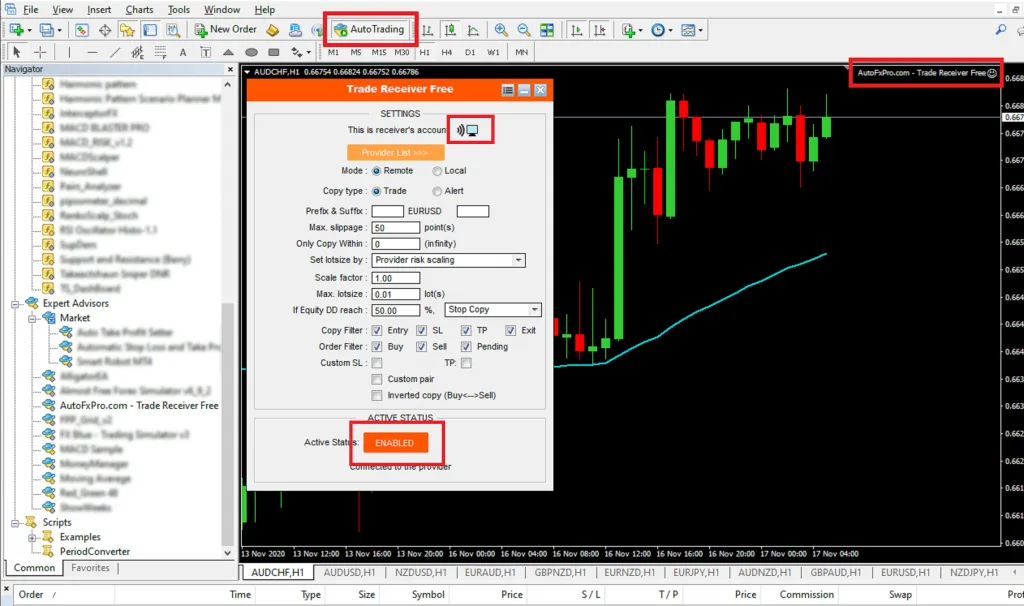
- Click “Auto Trading” in the top MENU and Copier should start.
- If everything is working, everything in red boxes will look like the image below.
- If Copier doesn’t start, click the “ENABLED” button to see if that starts it.
- If you get a blinking blue “Monitor”, your copier is working.